How to Send an Approval Request
The same flow works for every object type (data elements, features, models, policies, global functions). Only the workflow and reviewers configured for that type differ.
Quick path: send your first request
If your object is ready (registered, simulated, workflow configured), the full flow takes four steps:
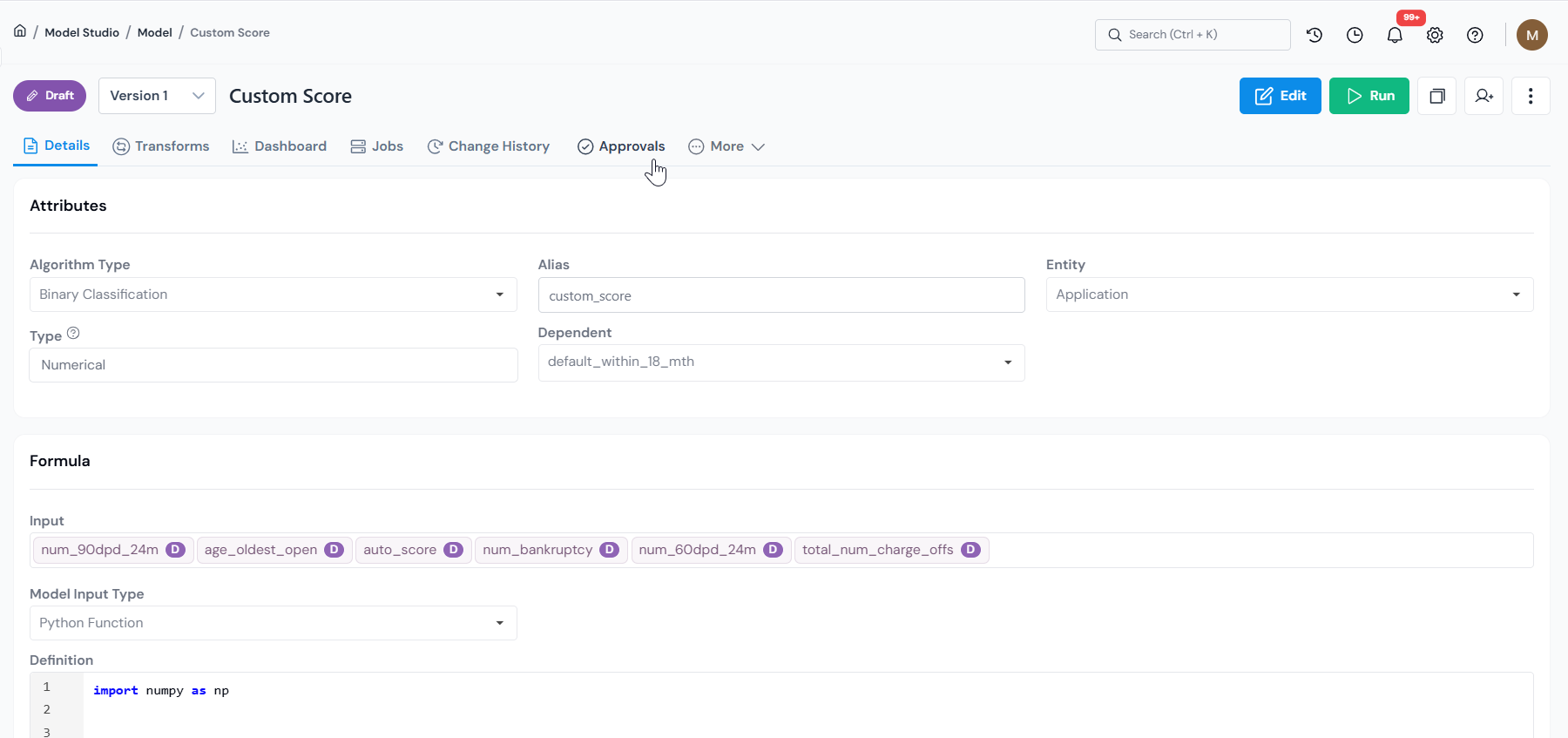
- Open the object and click the Approvals tab.
- Pick an Approval Workflow from the dropdown (if not already selected), then click Request Approval at the top right.
- In the form, choose a Responsibility, attach a Supporting Analysis (simulation), and click Send Request.
- Repeat step 3 for each remaining responsibility on the workflow.
The object's status changes to Pending Approval as soon as the first request is sent. The rest of this page covers prerequisites, the form fields, group approval, and what to do while the request is pending.
The status flow at a glance
An object travels from Draft to Approved through the path below. The rest of this page walks each stage in detail.
Before you start
- The object must be registered (saved as a draft).
- A simulation must be run on the object so it can be attached as evidence. Admins can make this optional in Settings, but it is required by default.
- An Approval Workflow must exist for that object type. See Configure an Approval Workflow.
- You need edit access to the object. Anyone with edit access can submit it for approval.
Step 1: Open the Approvals tab
Open the object's details page and click the Approvals tab.
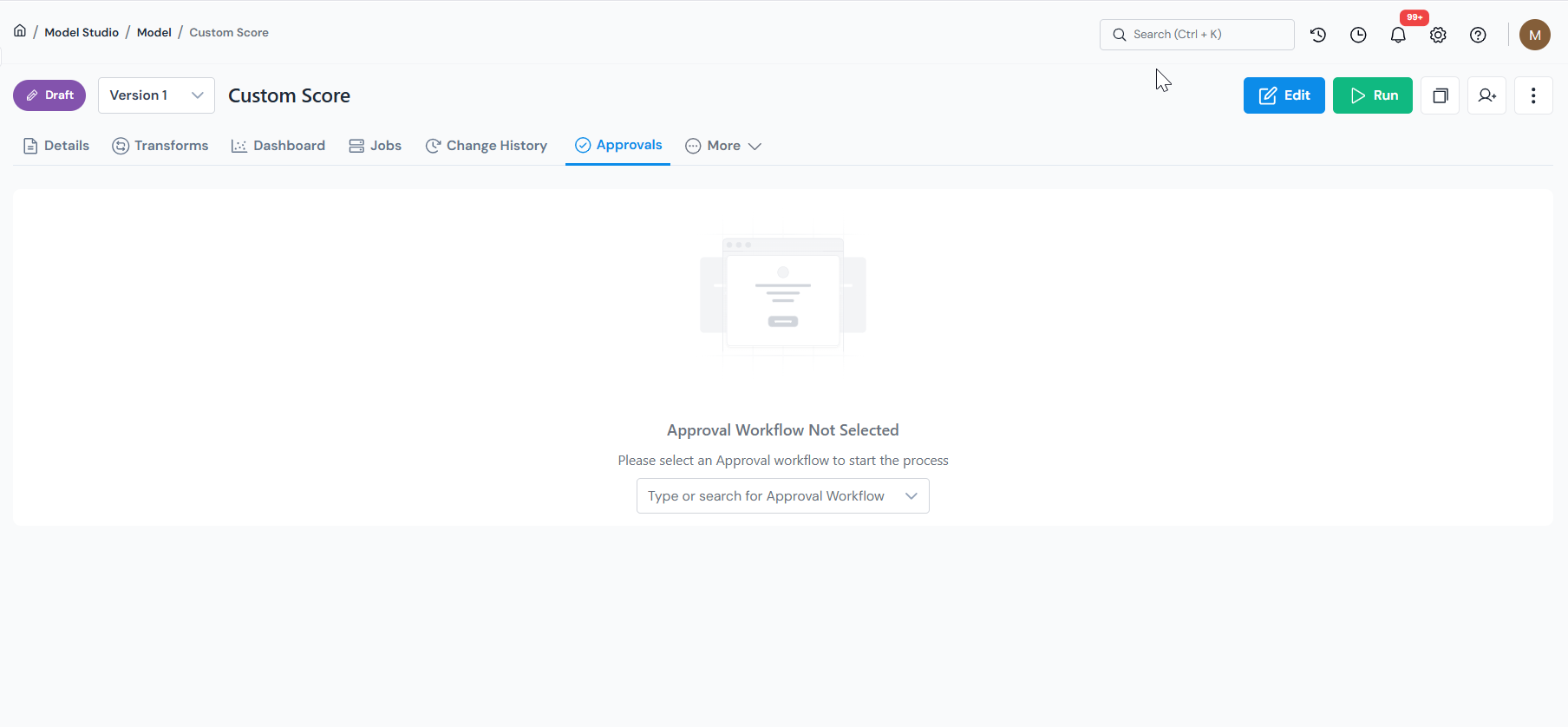
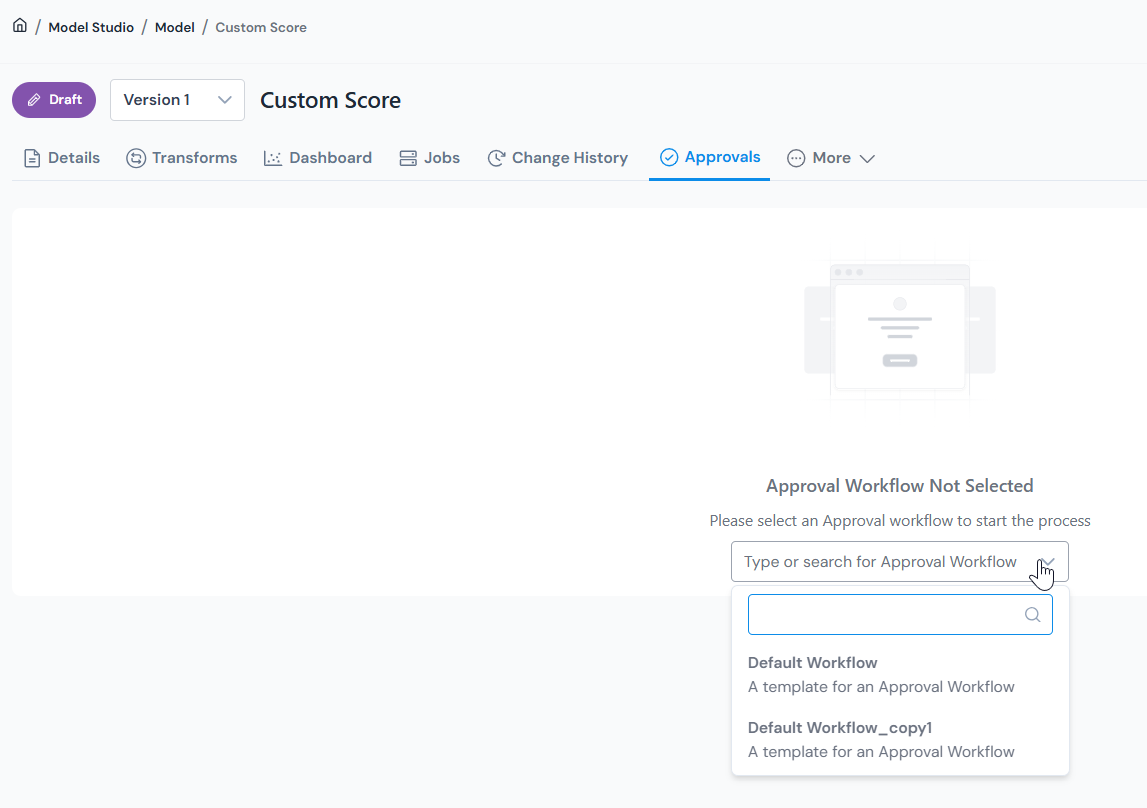
If you see Approval Workflow Not Selected, pick a workflow from the "Type or search for Approval Workflow" dropdown. The dropdown next to Request Approval also lets you switch workflows later if more than one is configured for this object type.
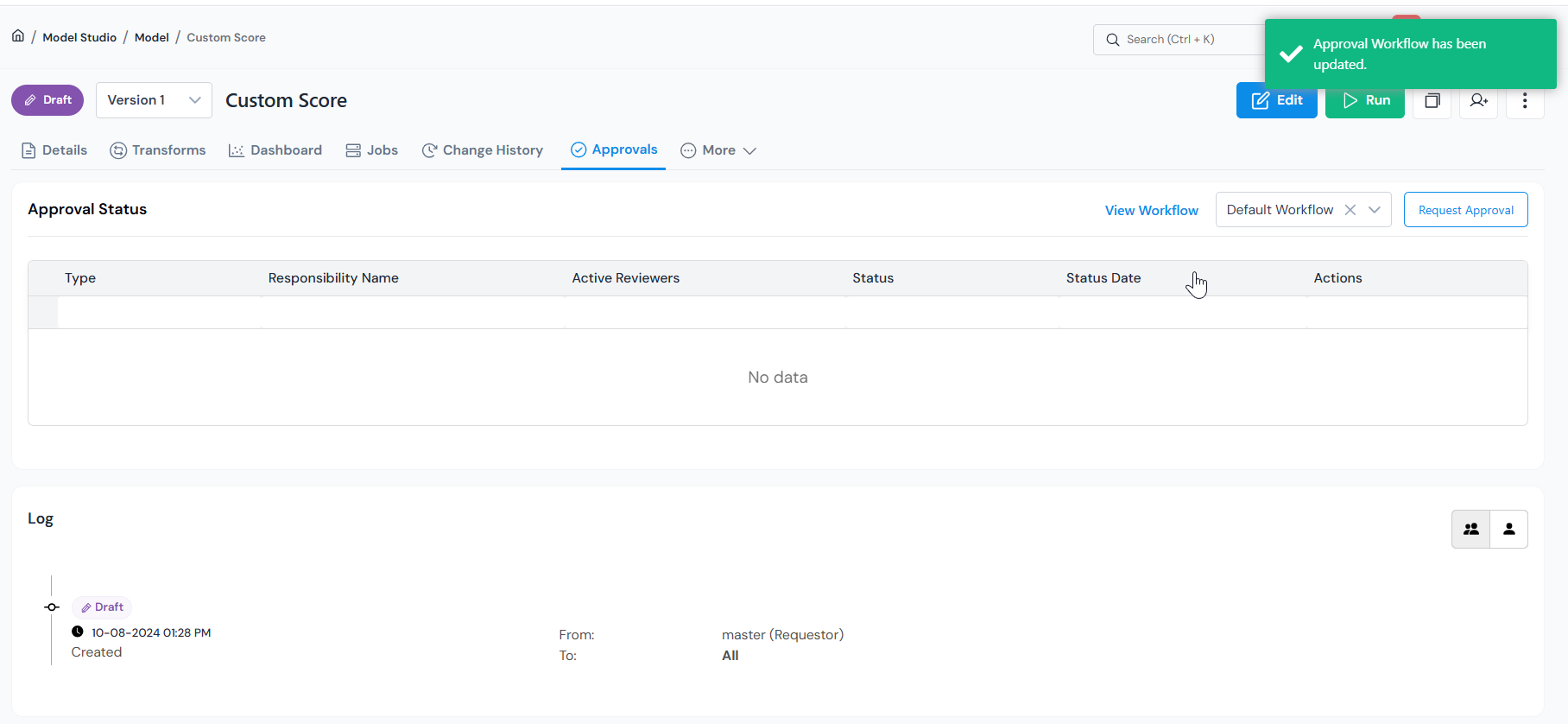
Once a workflow is selected, the Approval Status table appears with View Workflow and Request Approval at the top right. Click Request Approval to open the form.
What View Workflow shows
Clicking View Workflow opens a dialog listing every responsibility on the selected workflow, with its Veto Power and Editable flags. In a sequential workflow, only the current sequence group can review at a time; later responsibilities activate automatically.
Example for Model MRM Approval Workflow:
| # | Responsibility | Veto Power | Editable |
|---|---|---|---|
| 1 | Code Quality | No | Yes |
| 2 | Dev Team | No | Yes |
| 3 | MRM | Yes | No |
| 4 | Fair Lending | Yes | No |
Code Quality and Dev Team review without Veto and keep the object editable. MRM and Fair Lending hold Veto and lock editing once their review starts.
Step 2: Resolve the input check
When you click Request Approval, the platform first checks every input the object depends on:
| Input state | What happens |
|---|---|
| All inputs Approved | The request form opens directly. Continue to Step 3. |
| Some inputs in Draft | A dialog asks whether to bundle the draft inputs into the same request (group approval, see below). Click Yes to include them, or No to send only the main object. |
| Some inputs in Pending Approval | You cannot continue. The dialog lists each blocking input; wait for those requests to finish or cancel them, then try again. |
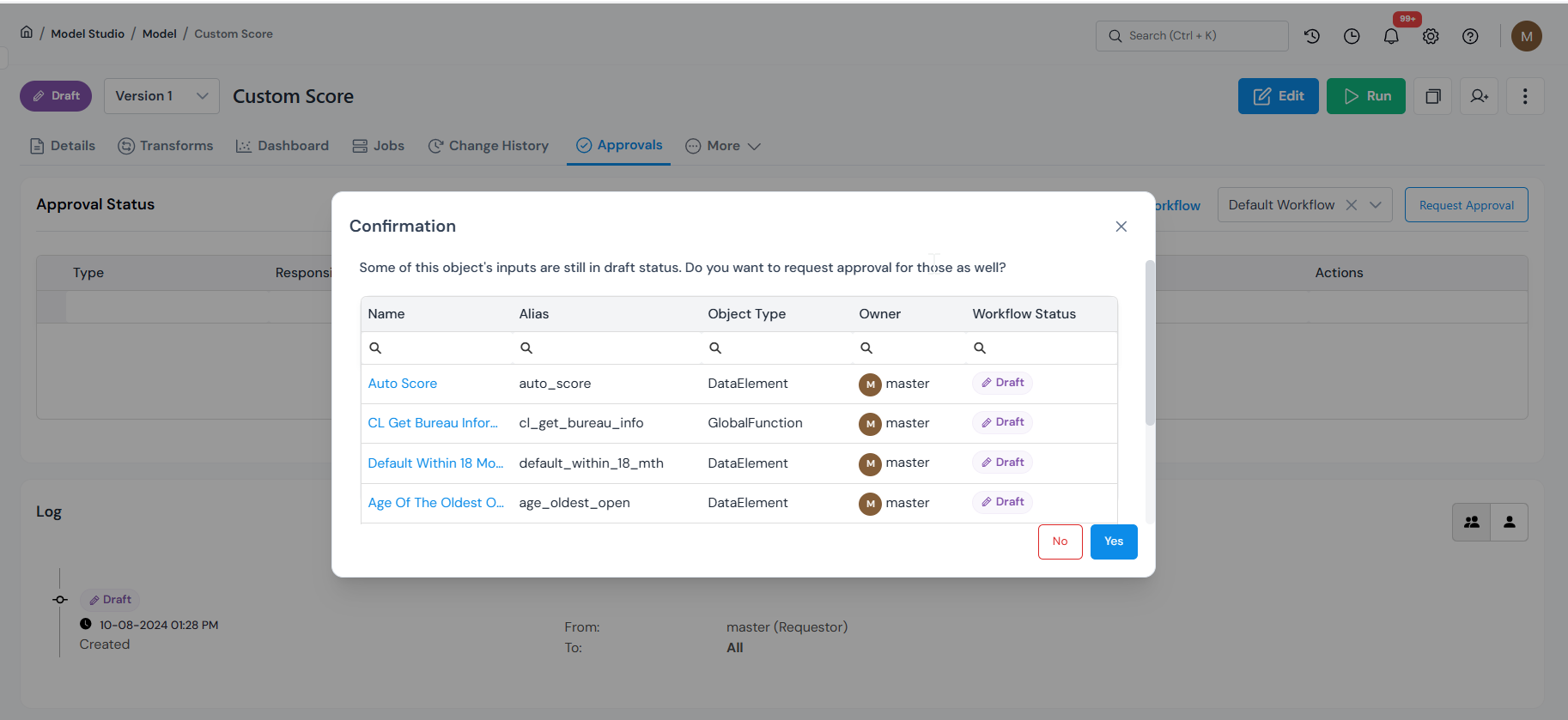
Group approval (bundling draft inputs)
If you click Yes in the Draft inputs dialog, the main object and its draft inputs are routed through a single request.
- Reviewers make their decision on the main object's Approvals tab; that decision applies to every bundled input.
- Before accepting, the reviewer must tick the checkbox next to each bundled input. Leaving any unchecked makes the action fail.
- The main object's approval history lists every bundled input. After approval, each bundled input's Approvals tab shows a reference link back to the main object.
Step 3: Fill in the Request Approval form
The form is titled Request Approval and shows the chosen Approval Workflow as a read-only header (for example, Approval Workflow: Model MRM Approval Workflow).
One submission per responsibility
Each form submission targets one responsibility. A workflow with N responsibilities needs N submissions. In parallel workflows you can submit them in any order; in sequential workflows only the current sequence group is open and the next group unlocks automatically.
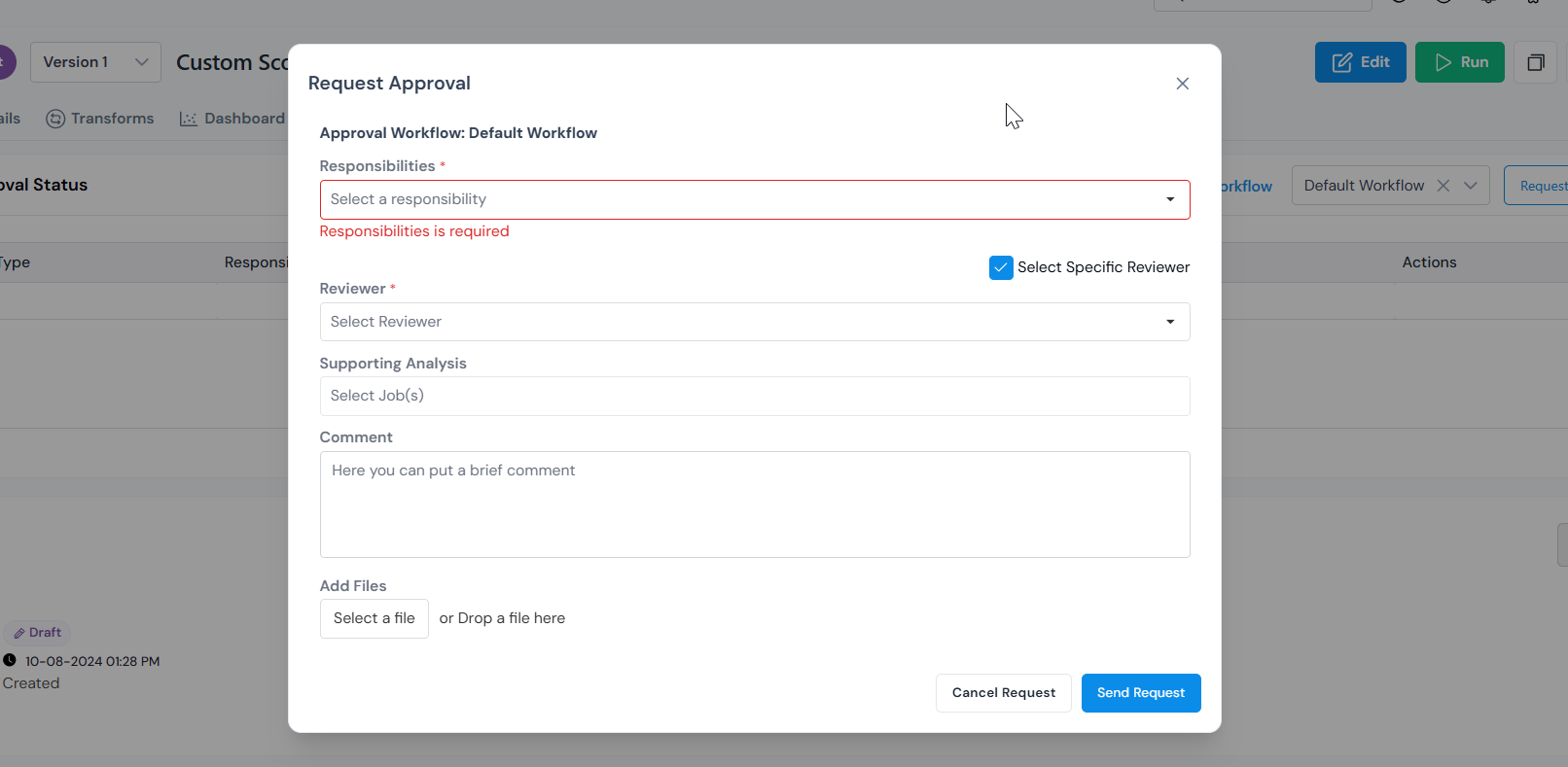
| Field | What to enter |
|---|---|
| Select a ResponsibilityRequired | Pick one responsibility from the workflow (for example, Code Quality, MRM). One at a time. |
| Select Specific Reviewer | A checkbox above the Reviewer dropdown. On (default): pick one user; only that user is notified and can act. Off: every reviewer assigned to the responsibility is notified, and any of them can act. |
| ReviewerRequired | Visible when Select Specific Reviewer is on. Pick the user from the dropdown. |
| Supporting AnalysisRequired | Pick one or more simulations that have been run on this object. They are the evidence reviewers see. Once approved, every attached job is marked verified. (Admins can make this optional in Settings.) |
| Comment | Free-form note for the reviewer. |
| Add Files | Drag a file into the drop zone, or click Select a file to upload supporting attachments. |
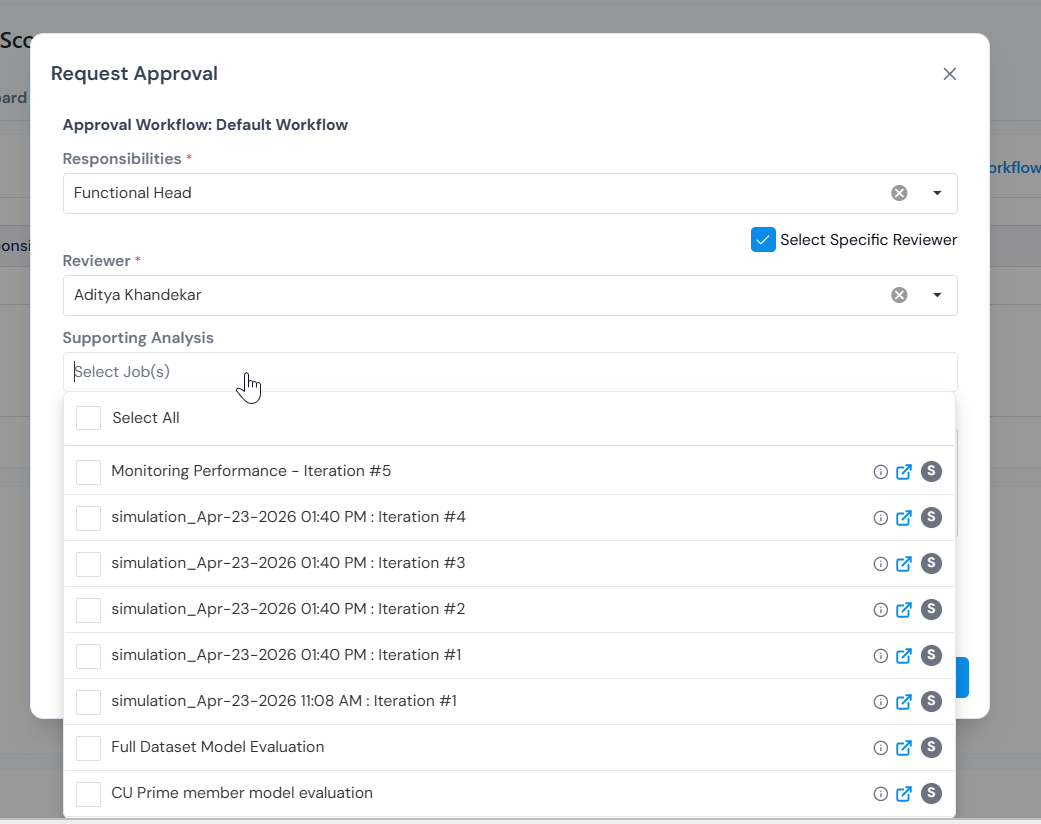
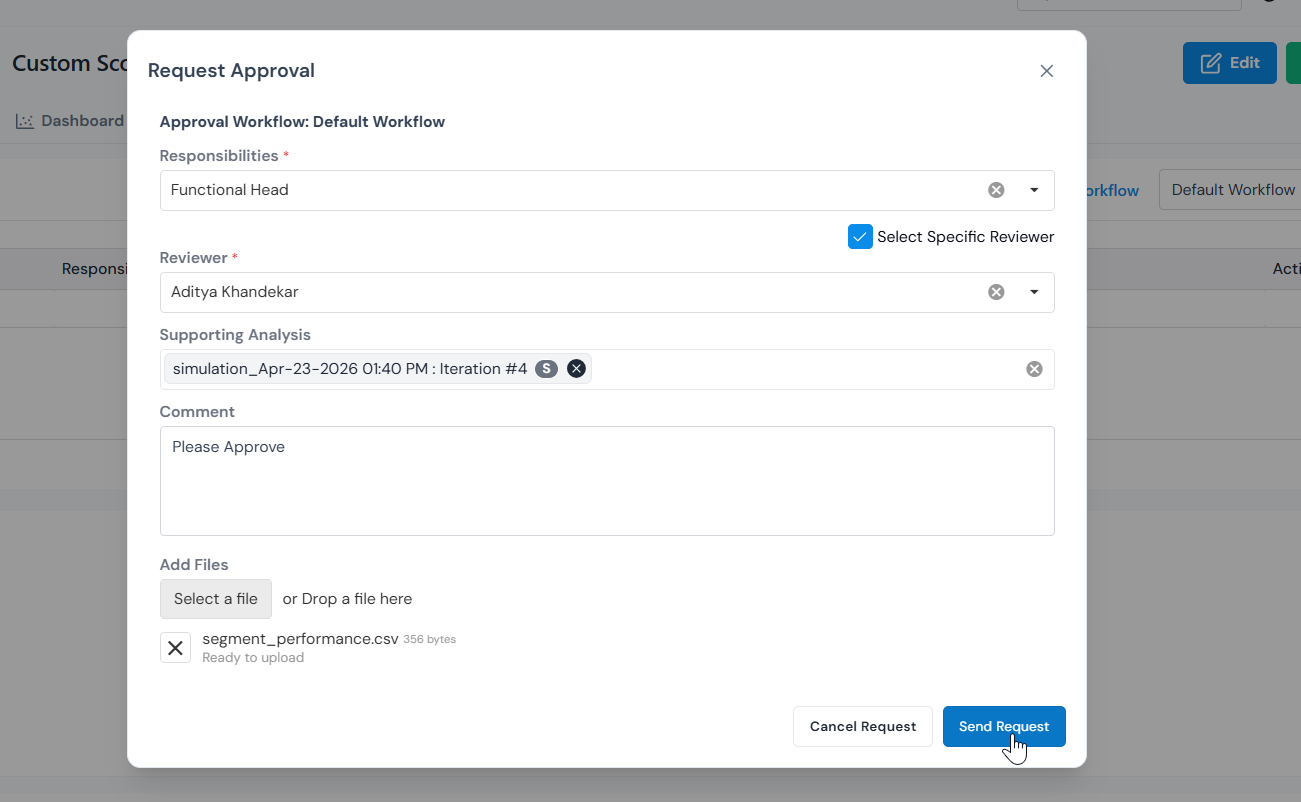
Click Send Request to submit, or Cancel Request to back out. Reviewers are notified by email, in-app, or both, depending on what your Platform Admin has configured.
After you submit: tracking the request
Once submitted, the object moves to Pending Approval and the Approvals tab becomes your home base. It has two parts.
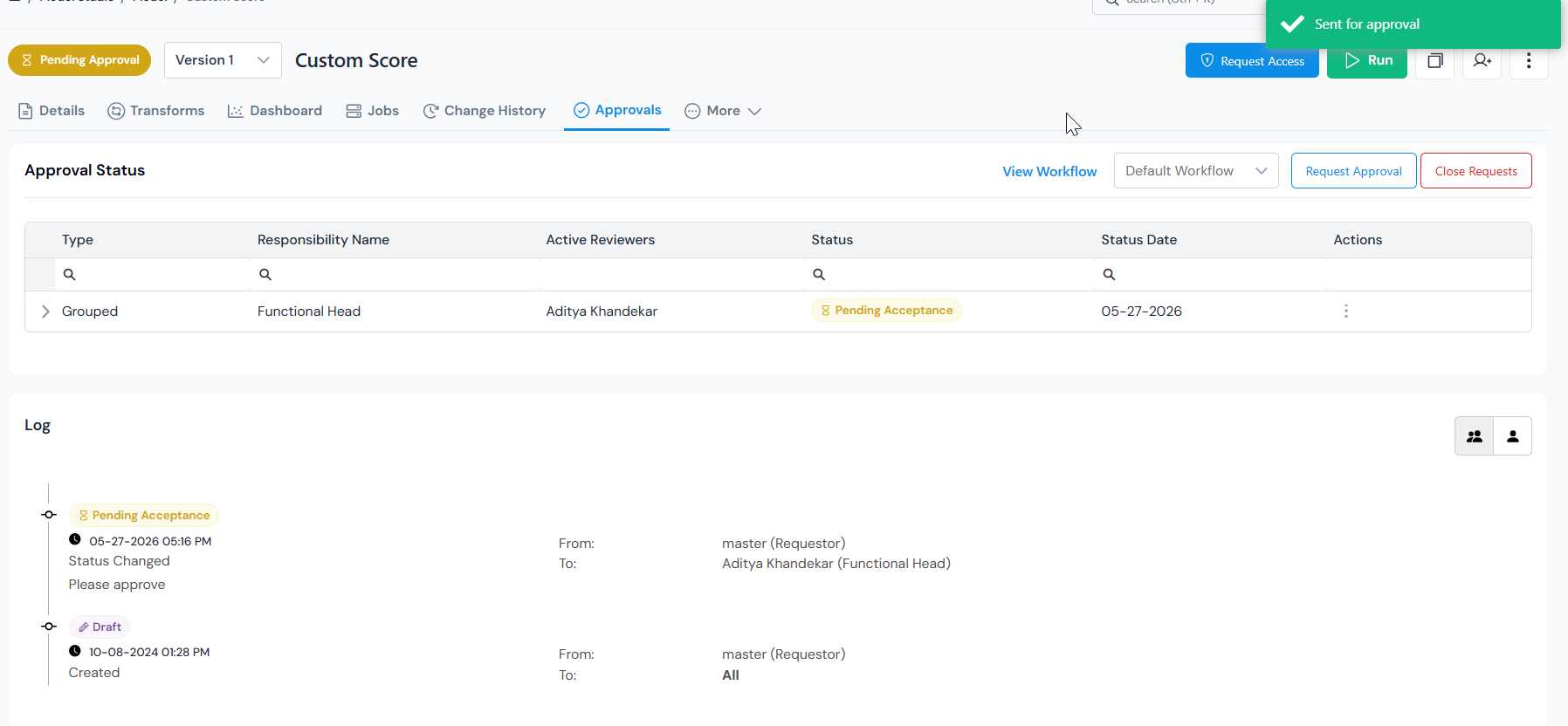
Approval Status table (top): one row per submitted request.
| Column | Shows |
|---|---|
| Type | The Approval Workflow row, or a bundled input under group approval. |
| Responsibility Name | The responsibility this request targets. |
| Active Reviewers | The user(s) who can act on this row. |
| Status | Pending Acceptance, Accepted, Rejected, Need Change, Need Info, or Canceled. |
| Status Date | When the row last changed. |
| Actions | Three-dot menu, see below. |
Log (bottom): a read-only, chronological audit trail of every state change. Each entry records the event, timestamp, From and To (who initiated and where it was directed), the resulting state, and an optional comment.
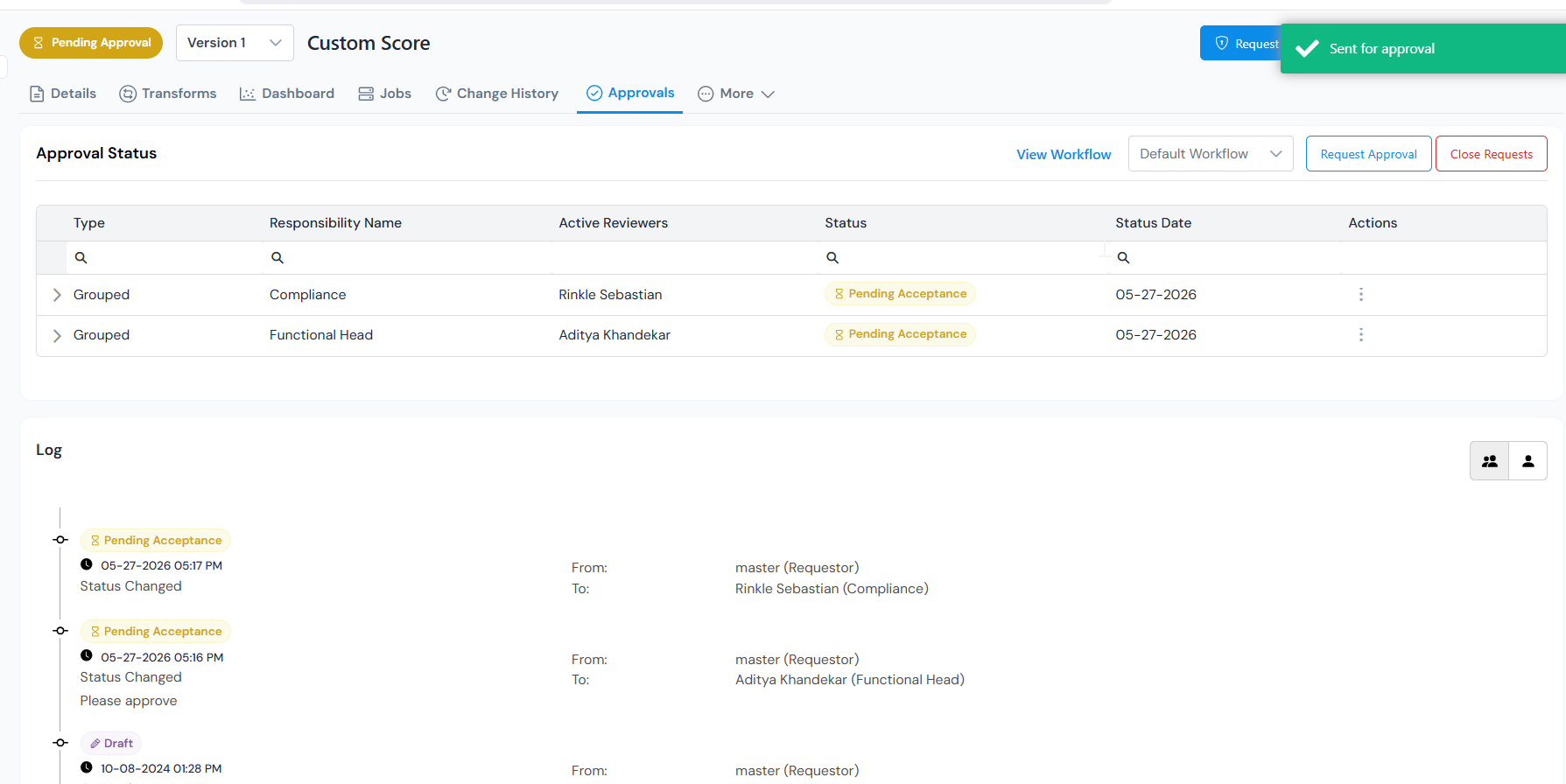
Can you keep editing during review?
| Responsibility setup | Editing during review |
|---|---|
| Any responsibility has Veto Power | Locked until all decisions are made. |
| All responsibilities are non-Veto and marked Editable | Stays editable. |
Actions while pending
From the three-dot menu on each row:
- Add Comment: leave a note for the reviewer.
- Send Reminder: nudge a slow reviewer.
- Cancel: cancel only that responsibility's review (a reason is required). Other rows are unaffected.
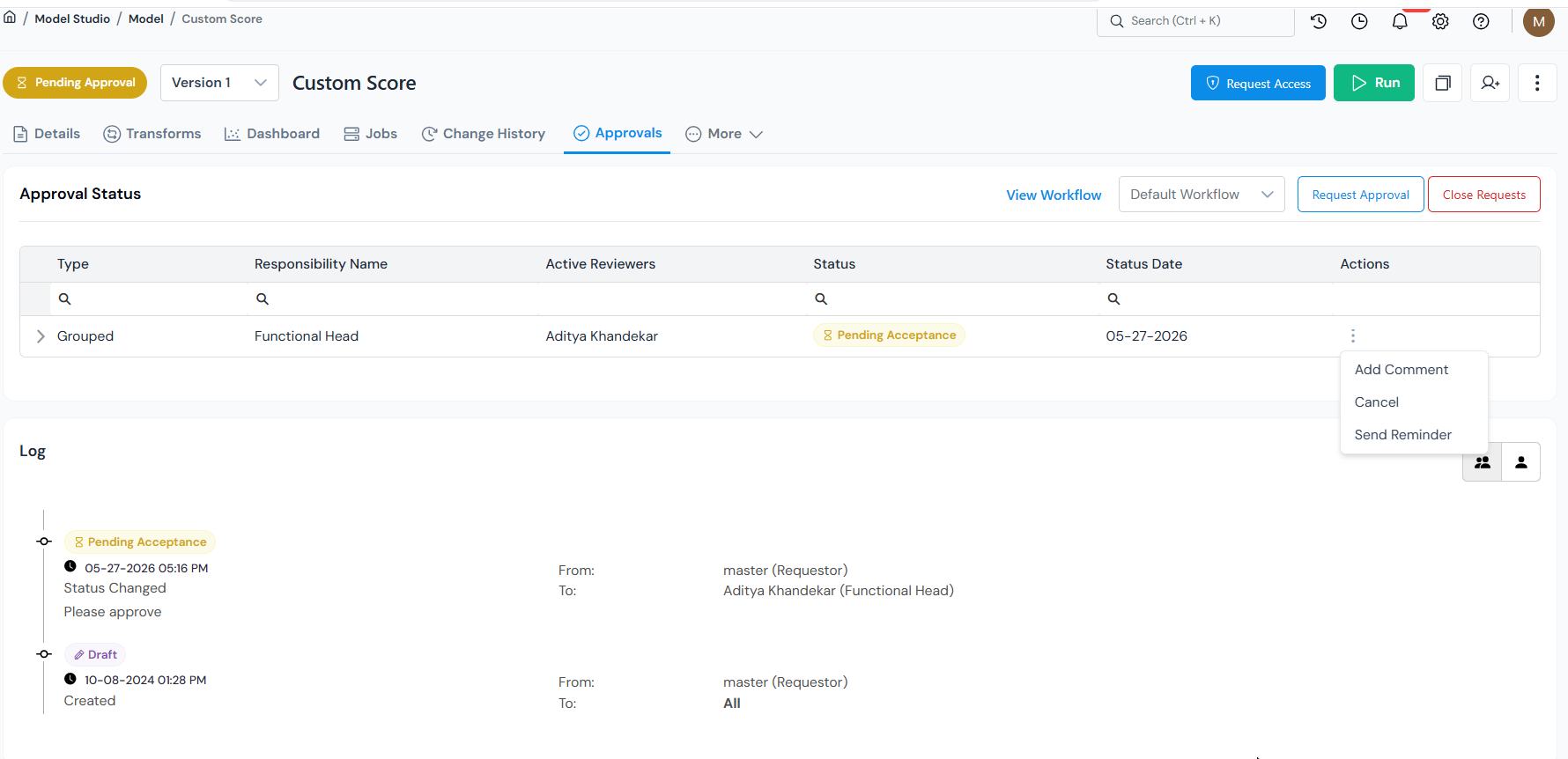
Above the table:
- Close Requests: cancels every open review on the object and moves it back to Draft. Use this to stop the whole approval process and resume editing.
Outcomes: what each reviewer status means
Each row in the Approval Status table reaches one of these states. Final decisions close the review for that responsibility:
| Status | What it means and what you do |
|---|---|
| Accepted | This responsibility has signed off. When every responsibility is Accepted, the object becomes Approved. |
| Rejected | If the responsibility has Veto Power, the whole request is rejected immediately. By default, any rejection results in rejection. Clone the object to start a new version. |
Interim statuses mean the reviewer needs something back from you:
| Status | What it means and what you do |
|---|---|
| Need Change | The reviewer wants edits. Make the changes and Resubmit (see below). |
| Need Info | The reviewer wants more information (a fresh simulation, a comment, an attachment). Provide it and Resubmit. |
Resubmitting after Need Change or Need Info
- Open the Approvals tab.
- From the Actions menu on the relevant row, select Resubmit.
- Attach a new simulation as Supporting Analysis if the reviewer asked for one.
- Click Send Request.
The row goes back to Pending Acceptance and the object stays in Pending Approval throughout.
Once everything is Accepted
- The object's status becomes Approved.
- Other objects can now reference it as an input.
- The version is locked. Any further change creates a new version, which must go through approval again.
What's next
- For modelers: once your model or policy is approved, see Monitor your Model or Policy to track its performance in production.
- For admins: setting up the workflows themselves (responsibilities, reviewers, veto, sequence) is covered in Configure an Approval Workflow.