

Run a Simulation
Ask AI
What is it?
Section titled “What is it?”A simulation executes the logic of a registered object - a data element, feature, model, or policy you have built and saved on the platform - on data. It is the primary way to test your work, validate performance, and produce the results you’ll attach when you request approval.
For example, say you’ve built a new credit risk model and want to see how it scores last quarter’s applications before you request approval. The simulation runs the model over those records and gives you the job output plus any reports you pick.
Simulations can be run at any point. You do not need to wait for approval to test your work.
Launching a Simulation
Section titled “Launching a Simulation”-
Navigate to the object you want to simulate in Data Vault, Feature Engineering, Model Studio, or a Policy module, and open its registry page.
-
Click Run in the top right corner.
-
Select Simulation from the dropdown.
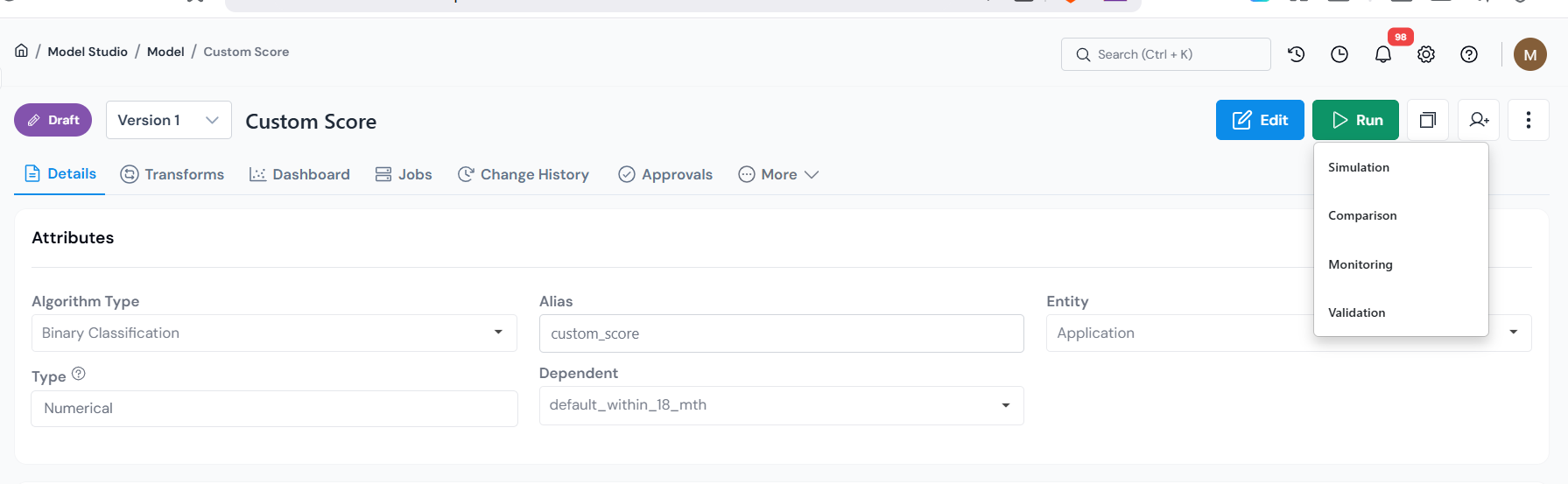
Open any registered object and choose Run → Simulation to launch the job form.
This opens the simulation job form. Fill only the sections your run needs, starting with the one most runs use.
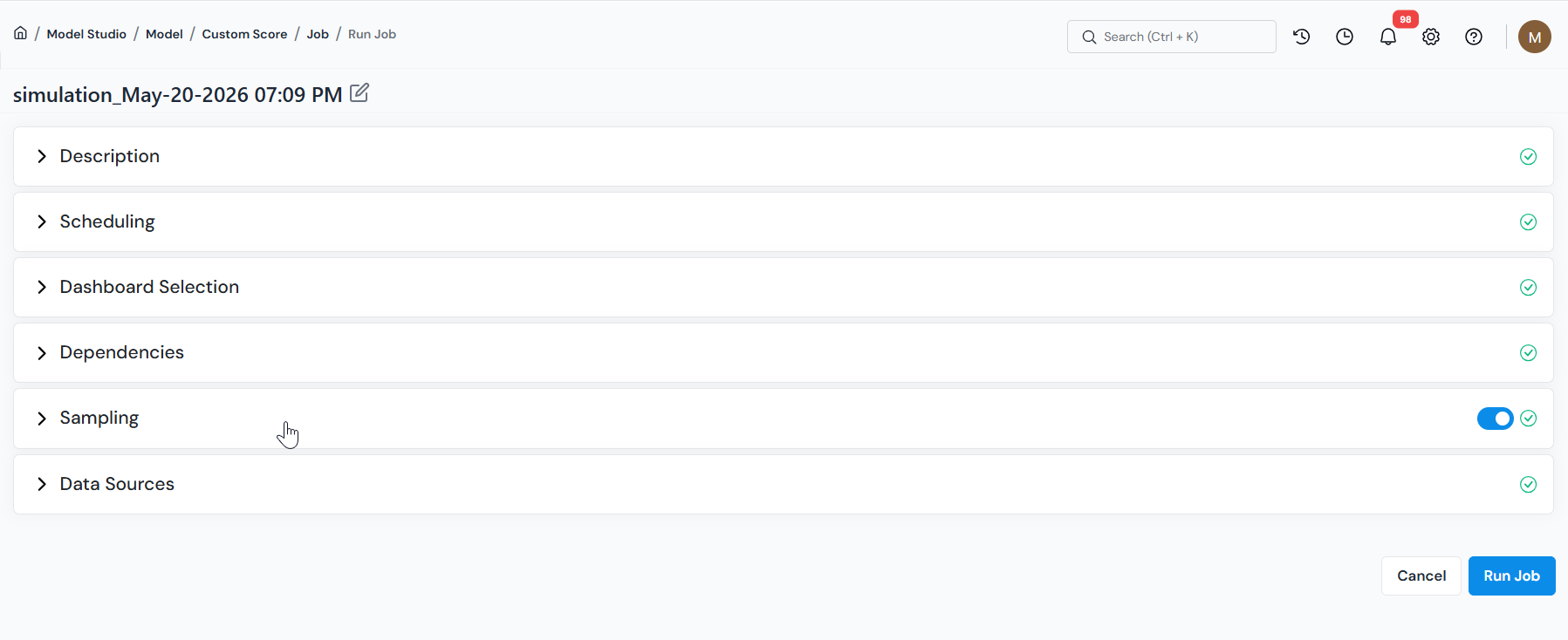
Running a Simulation
Section titled “Running a Simulation”You can click Run Job as soon as the form opens. With nothing changed, the object runs over its entire registered population.
Usually you don’t want everything, though. You want last quarter’s applications, or one product’s accounts, or a specific list of IDs. That’s what Sampling is for, and it’s the one section most people set before running.
-
In the job form, open Sampling. Use the toggle on the right of the section header to turn sampling on or off; with it off, the object runs over the full population. With it on, pick one of the two modes below to choose which records to run on.
The platform selects records for you by size, date range, and rules.
- Sample - select Sample Size (fixed row count), Sample Ratio (percentage of the table), or Full (entire population), then enter the value.
- Date (optional) - expand Show optional filter properties and choose a date column to filter the population by a time window. When a date column is selected, enter the From and To values for the window.
- Additional rules (optional) - click Add additional rules to add expression filters (for example,
FICO >= 680).
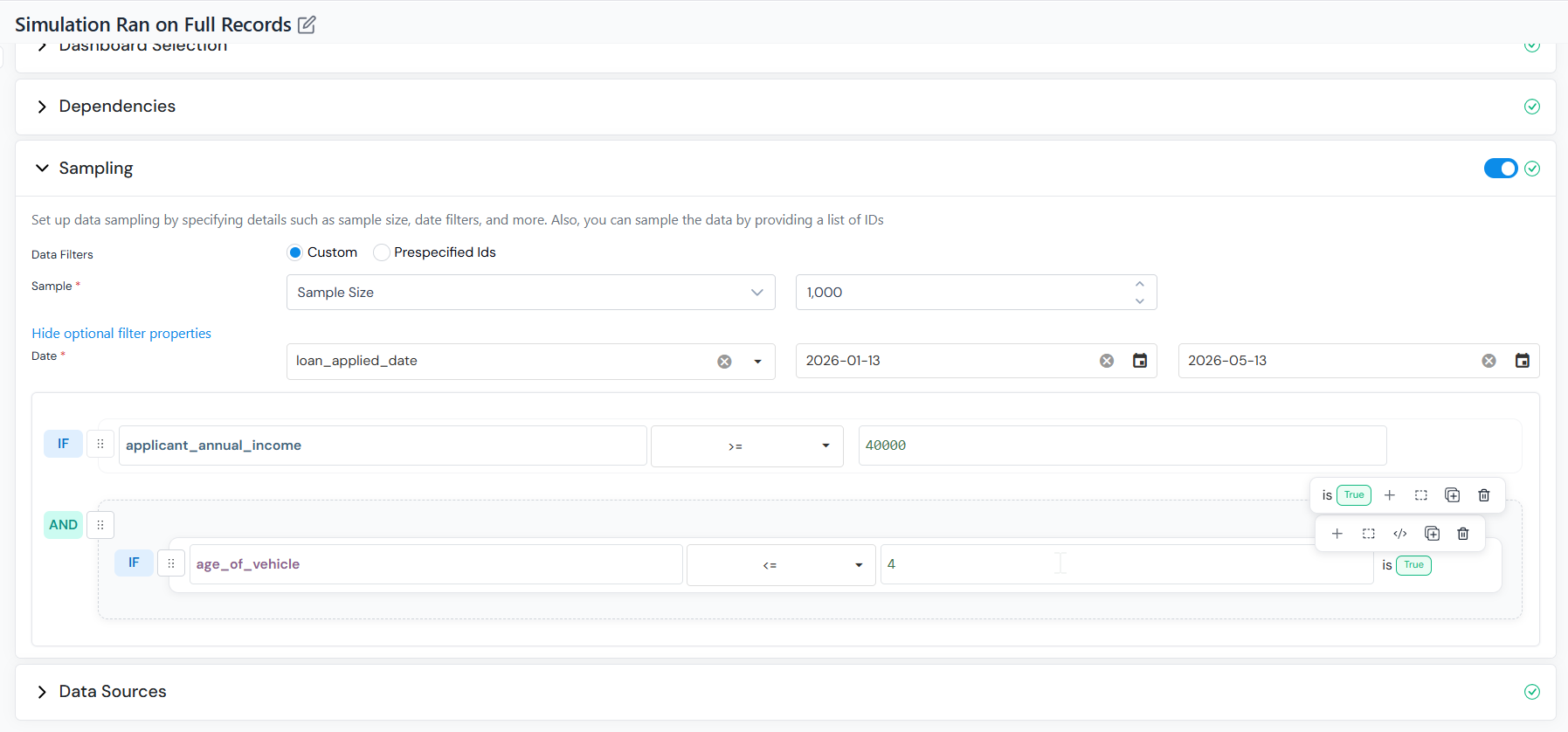
In Custom mode, set the sample size or ratio and optionally add date or expression filters. You already have the account IDs or application IDs you want to score; provide them and the simulation runs on exactly those. Point to a table or upload a CSV/Excel file containing your list of IDs.
- Table Location - a path on any supported source (Hive, S3, GCP, HDFS), or upload a CSV/Excel file from your local drive.
- ID Column Name - the column containing the IDs. Defaults to the entity column of the object; override if your file uses a different name.
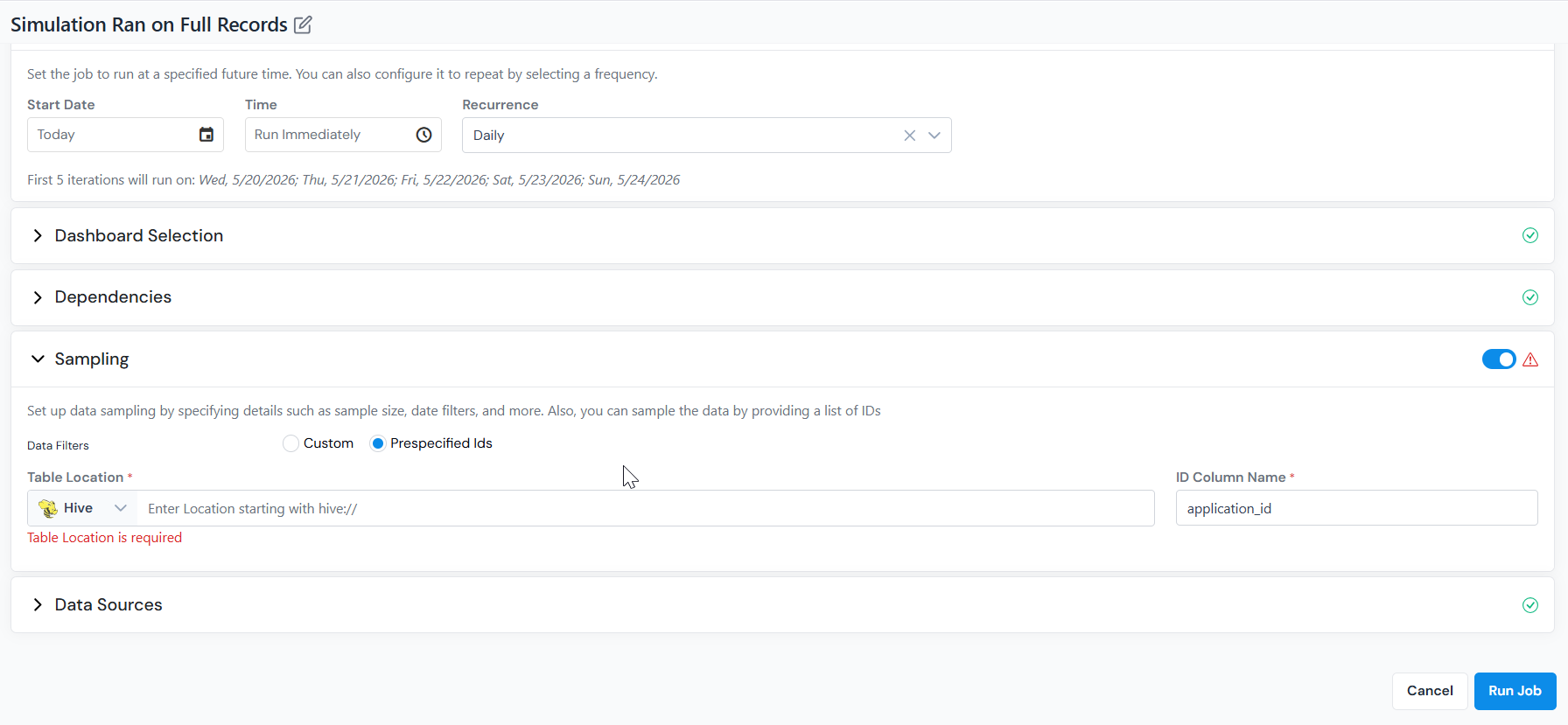
In Prespecified Ids mode, point to a table or upload a file containing the exact record IDs to score. -
Click Run Job at the bottom of the form.
-
You are redirected to the Jobs tab, where you can monitor progress.
To add reports or read from a different source, see the sections below before clicking Run Job.
Add Reports
Section titled “Add Reports”If you only need the scored records, skip this section. Add reports when you also want performance metrics and charts, KS, lift, ROC curves, or approval rates on top of job output.
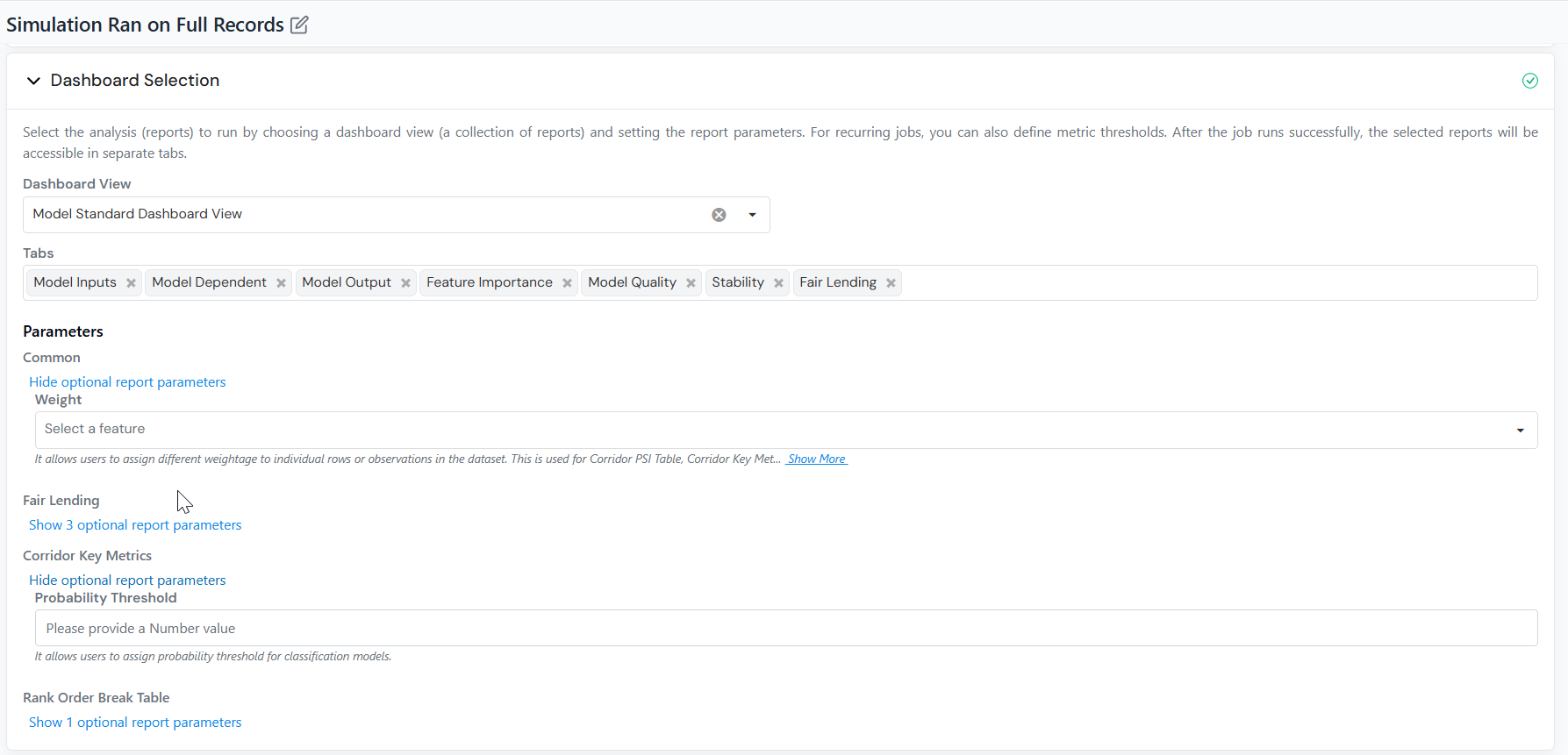
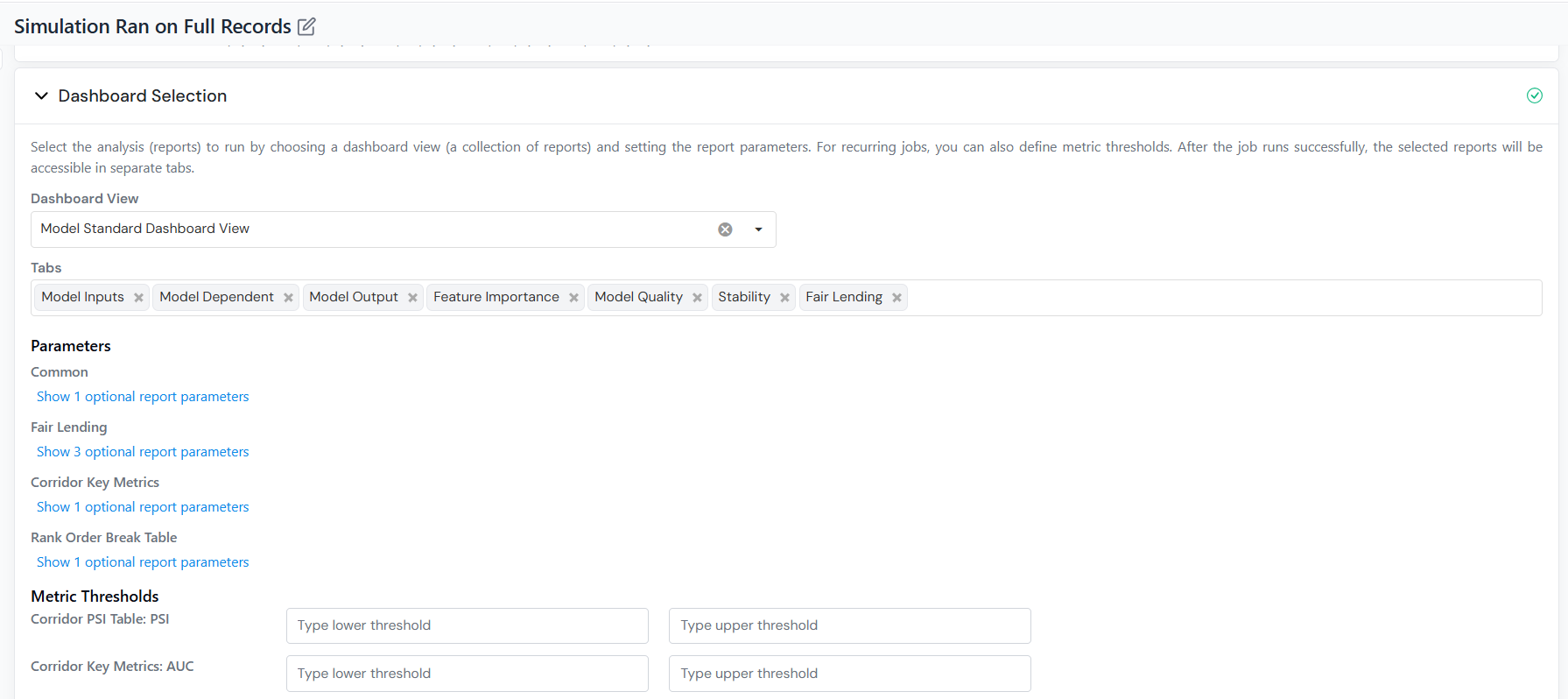
- Choose one or more Reports to run. Each selected report renders as its own tab in the results.
- Under Parameters, expand each report group and supply the value for each input the report needs (for example, weight for a weighted-average report, or threshold for a flagging report).
- For scheduled jobs, if the selected report tracks a metric over time, set upper and lower thresholds to flag values that breach those limits in the Tracking Report.
Optional Configuration
Section titled “Optional Configuration”These sections customize the run. Each has a default, so skip any you do not need.
Default: standard execution environment.
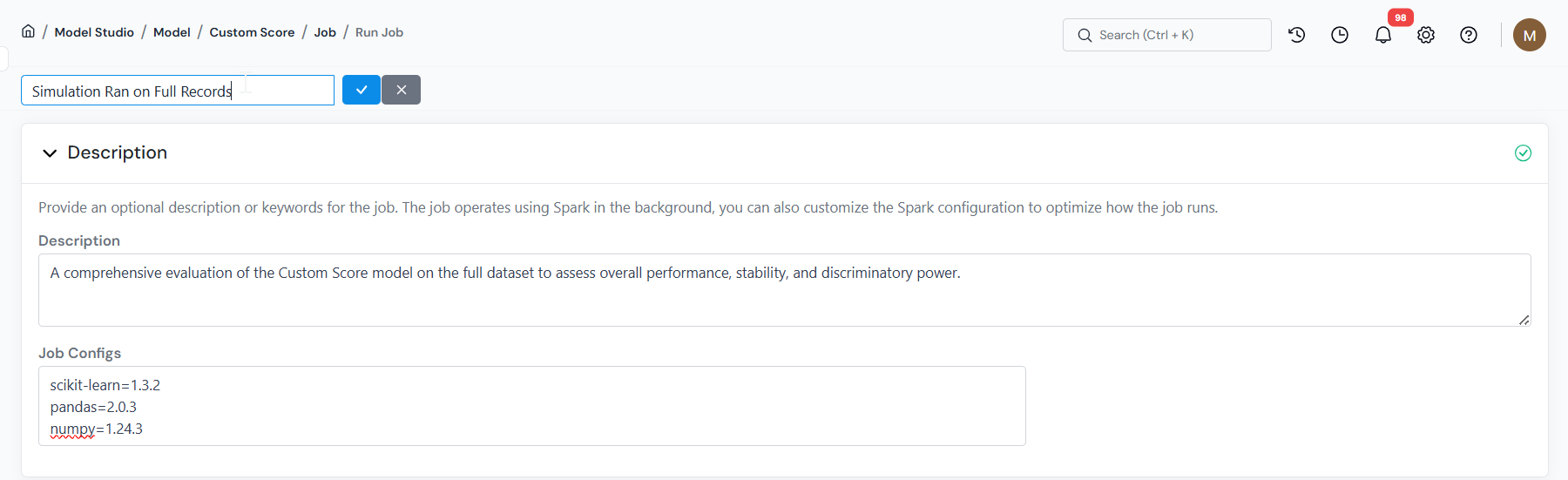
Add a note describing what you are testing, or use Job Configs to override Spark settings for this run (for example, executor memory, yarn queue, or a specific library version such as scikit-learn=0.24.2).
Default: runs immediately.
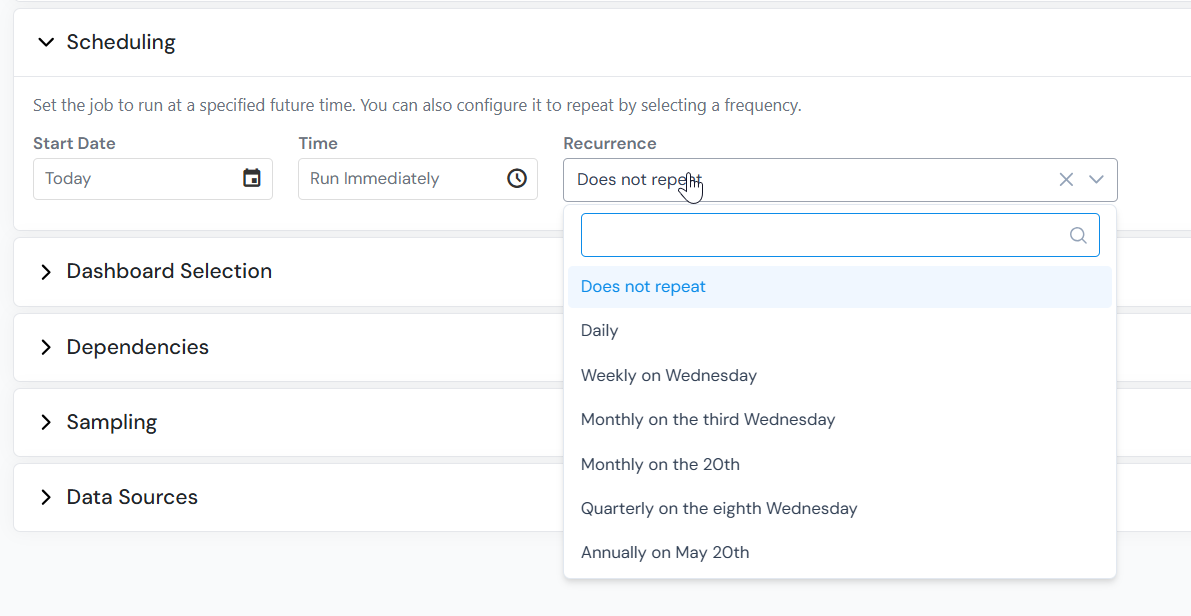
Set a Start Date and enable Recurrence to schedule repeating runs (daily, weekly, monthly, and so on). Each run is preserved on the Jobs tab, so you can compare results across periods or track a metric over time.
Dependencies are inputs the object’s logic references that don’t come from your data columns: Global Variables, Product Type Configs, and Runtime Parameters. The job can’t run until each required one has a value, and those values are not prefilled, so you set them here.
For example, a model that reads a min_fico Runtime Parameter shows a field where you type the cutoff to use for this run (say 680). A Global Variable or Product Type Config shows a dropdown where you pick the registered feature that supplies its value.
The section groups them two ways:
- Current Object - the dependencies of the object you are simulating.
- Dependents - the dependencies of the other objects it relies on, if any.
Fill every required field in both groups before running.
Default: reads the input tables from the locations registered in Data Vault.
You only need this section if you want to do one of two things:
- From data file - read a table from a different location than the registered one.
- From existing job - use a previous job’s output as this run’s input.
Use the radio button at the top of the section to switch between them.
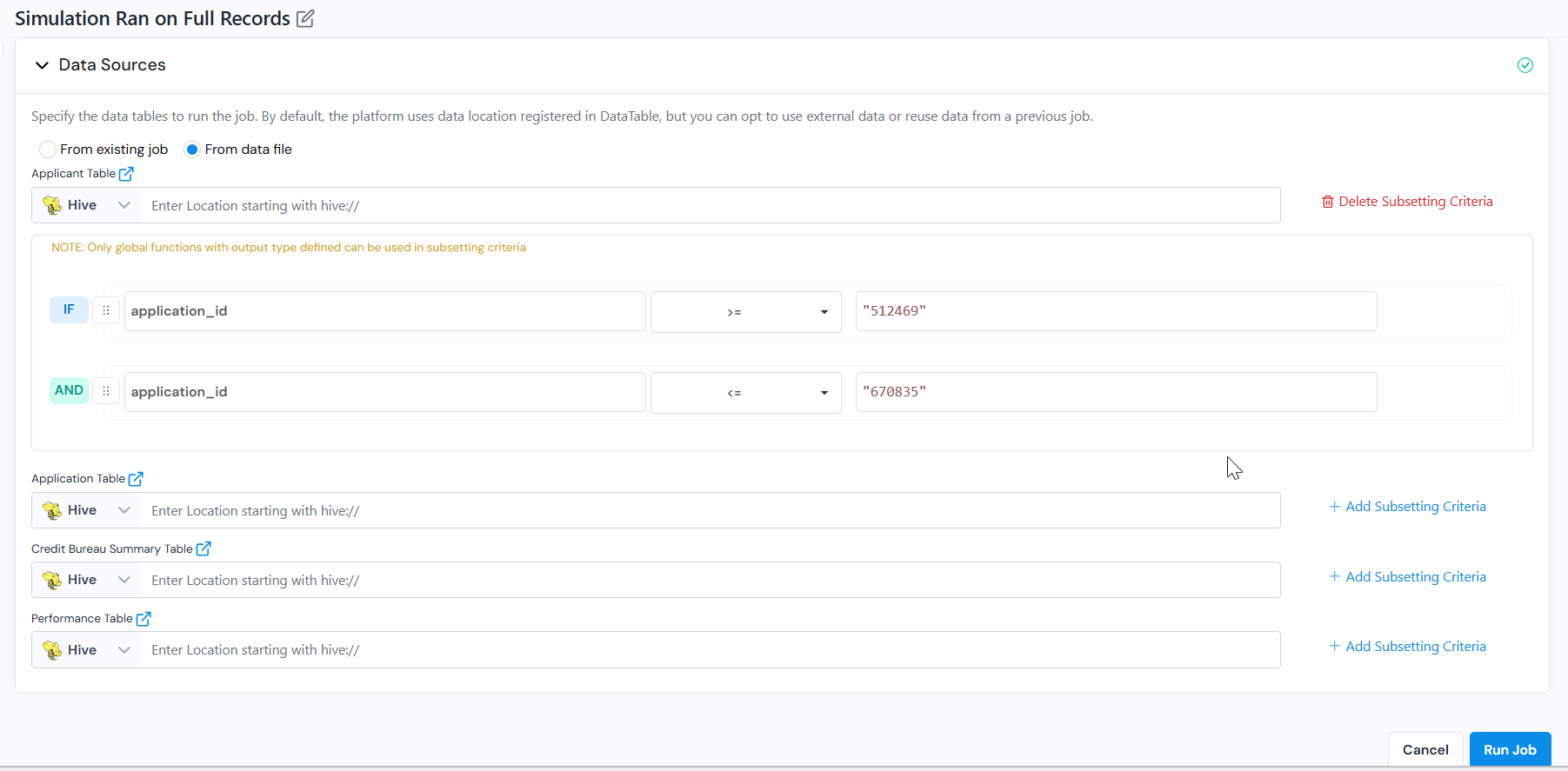
From data file
Override the registered location for one or more input tables (for example, Applicant Table, Application Table).
- For each table, select the source type (Hive, S3, GCP, HDFS) and enter the location, or upload a CSV/Excel file. Column names and types must match the registered schema.
- Click Add Subsetting Criteria next to a table to filter rows before they are read (for example,
application_date >= '2024-01-01'orregion = 'US').
From existing job
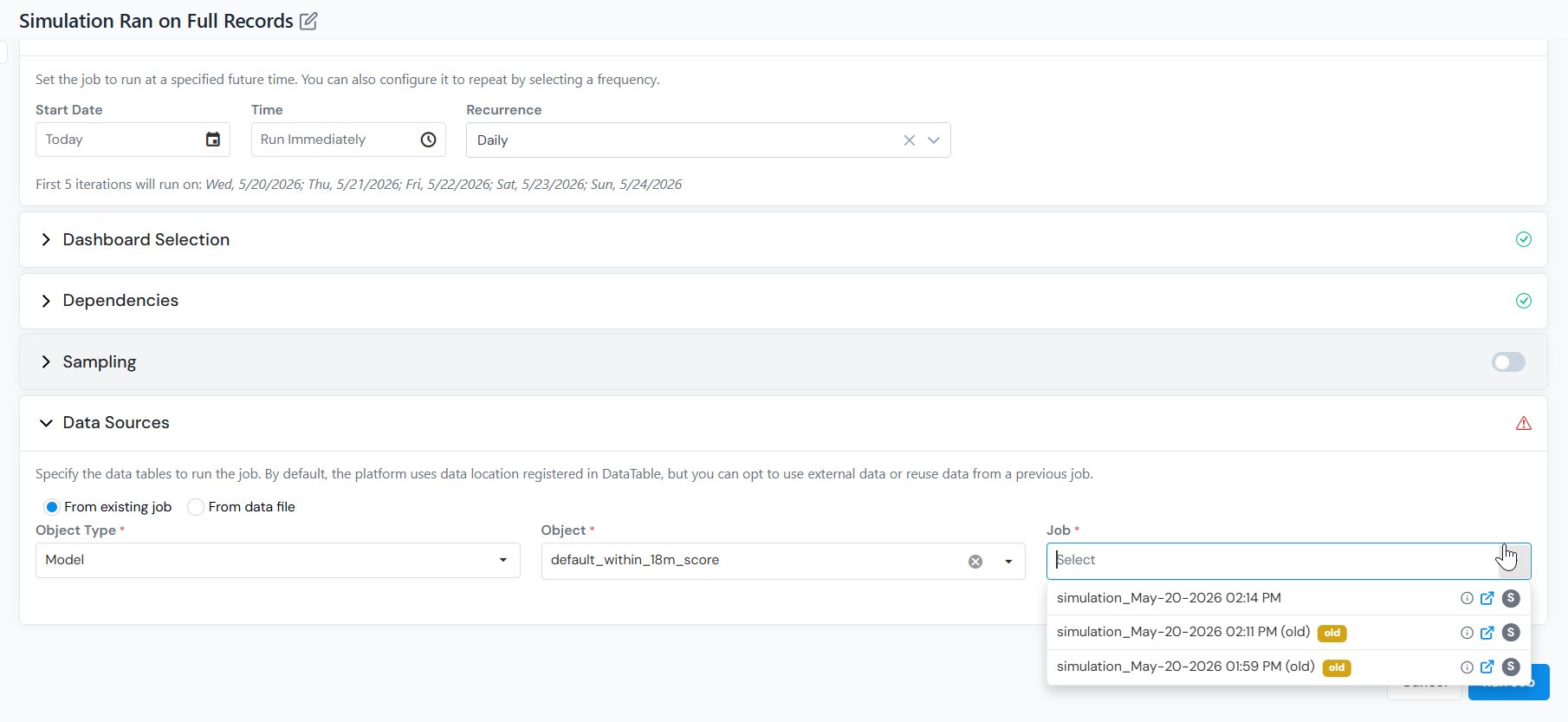
Reuse the output of a previous job as the input for this one.
- Select Object Type, Object, and then the specific Job to reuse.
- The reused job is not limited to the same object type, as long as its output contains the inputs this object needs (for example, a Feature job can feed a Data Element simulation).
Submitting and Monitoring the Job
Section titled “Submitting and Monitoring the Job”After you click Run Job, you land on the Jobs tab, which shows the job’s current status. Any given job only reaches a subset of these; it will be one of the following.
| Status | What it means |
|---|---|
| Scheduled | Set to run at a later time or on a recurrence; it has not started yet. |
| Queued | Waiting for resources. |
| Compiling | Job is being compiled. |
| Running | Execution is in progress. |
| Completed | Job finished successfully. |
| Partially Completed | The job ran, but some records failed to be scored while the rest succeeded. Open the job to see which. |
| Failed | Execution failed. Download the log from the job details page to see why. |
| Cancelled | Stopped manually before it finished. |
Execution time depends on data size and system load. To watch progress, use the Job Board icon () in the top bar to track queue position and progress.
Reading the Results
Section titled “Reading the Results”Once the simulation completes, open it from the Jobs tab. Use the outputs to confirm the object scored the records as expected, review any reports, and catch problems before approval.
| Tab | Description |
|---|---|
| Job Details | Summary of how the job was configured (sample, filters, data source, scheduling, object version). Useful for reproducing the run later. |
| Job Result | Row-level job output, downloadable as CSV or Parquet, plus runtime breakdown and execution logs. |
| Report Tabs | One tab per report selected in the Reports step. Whatever reports you chose render here. For a Model, this is where reports like ROC/AUC, KS, lift, confusion matrix, or any custom report you selected appear. For a Policy, it is where segment-level approval rates, risk distributions, or other custom reports you added appear. |
What’s next
Section titled “What’s next”- Compare Two Simulations side by side to analyze differences in results, metrics, and reports (for example, a candidate model against the production champion, or the same model across two date ranges).
- Read Understand Job Output to make sense of the columns in the Job Result.
- For an in-production model or policy, Monitor your Model or Policy using scheduled simulations and metric thresholds.
Was this page helpful?
Thanks for the feedback.