

Register a Table
Ask AI
What is it?
Section titled “What is it?”Data Table serves as the starting point of the platform, allowing you to register all data sources needed for analytics.
For example, if you plan to register and monitor a behavior score (a behavioral PD model on existing accounts) with the following structure, you must first register all tables the Model depends on.
In this case, both the Account table and the Payment History table must be registered as Data Tables before proceeding with the Model registration.
Benefits of a registered Data Table
Section titled “Benefits of a registered Data Table”- Change history is automatically recorded so every modification to the table is tracked.
- Lineage shows how the table is consumed across downstream Features, Models, and Policies.
- Quality Checks can be run on the table to verify data integrity.
Entities, primary tables, and keys
Section titled “Entities, primary tables, and keys”A little background makes the form fields below much clearer. The steps further down use a running example of two entities, Application and Account, plus a secondary/detailed Payment History table under Account, to show how this works in practice.
Entity - the thing a decision is made about, such as an Application, Customer, Account, or Prospect. For example, an Application is an entity that a credit file attaches to and that you approve or decline.
Primary table - the one table that holds the complete list of IDs for an entity (for example, every Account ID that exists). Each entity has exactly one primary table, which you mark with the Primary Table checkbox. Every other table for that entity is a secondary/detailed table that adds more columns about those same IDs.
Keys - how tables identify rows and link together. They are set up in Settings (for example application_id, account_id) and then attached to columns, which lets a column line up with the same key on another table. Each key you attach also takes a Constraint.
Constraint - an independent property on the key: Primary, Unique, or None. Primary marks the entity's main identifier and is only available on primary tables. Unique states that the column's values never repeat. A column can also carry a key with None as its constraint.
How to Register?
Section titled “How to Register?”Follow these steps to register a Data Table.
Open the Create Form
Section titled “Open the Create Form”
Open the Create Form
Section titled “Open the Create Form”On the Data Vault → Data Table page, click + New Data Table.
A name prompt opens first. Enter a descriptive name for the table (for example, Account Table) and confirm to land on the full Data Table form.
Fill in Attributes
Section titled “Fill in Attributes”
Fill in Attributes
Section titled “Fill in Attributes”Fill in the standard metadata: an Alias (a short identifier such as account_table), a Group (a logical grouping for organising similar tables), and a Description of what the table contains.
Two fields need a decision:
- Primary Table - tick this only if the table holds the complete list of unique IDs for an entity (for example, every Account ID). Each entity can have only one primary table. Leave it unticked for a secondary/detailed table that simply adds more columns about those same IDs. See Entities, primary tables, and keys above.
- Input Source - where the data lives and how the platform reads it, covered next.
In our running scenario, the Application table and the Account table each list every ID for their entity, so both are ticked as primary tables. The Payment History table is left unticked: many cycles belong to one account, so it is a secondary/detailed table under the Account entity.
Input Source. This is where you tell the platform where to read the data from and, optionally, how to preprocess it before any job runs against this table.
Fill in:
- Location: the path or connection string (for example,
hdfs://...,s3://..., or a JDBC URL). For CSV, you can also upload a file directly instead of providing a path. - Format: Parquet (default), Hive, ORC, CSV, Snowflake, or JDBC.
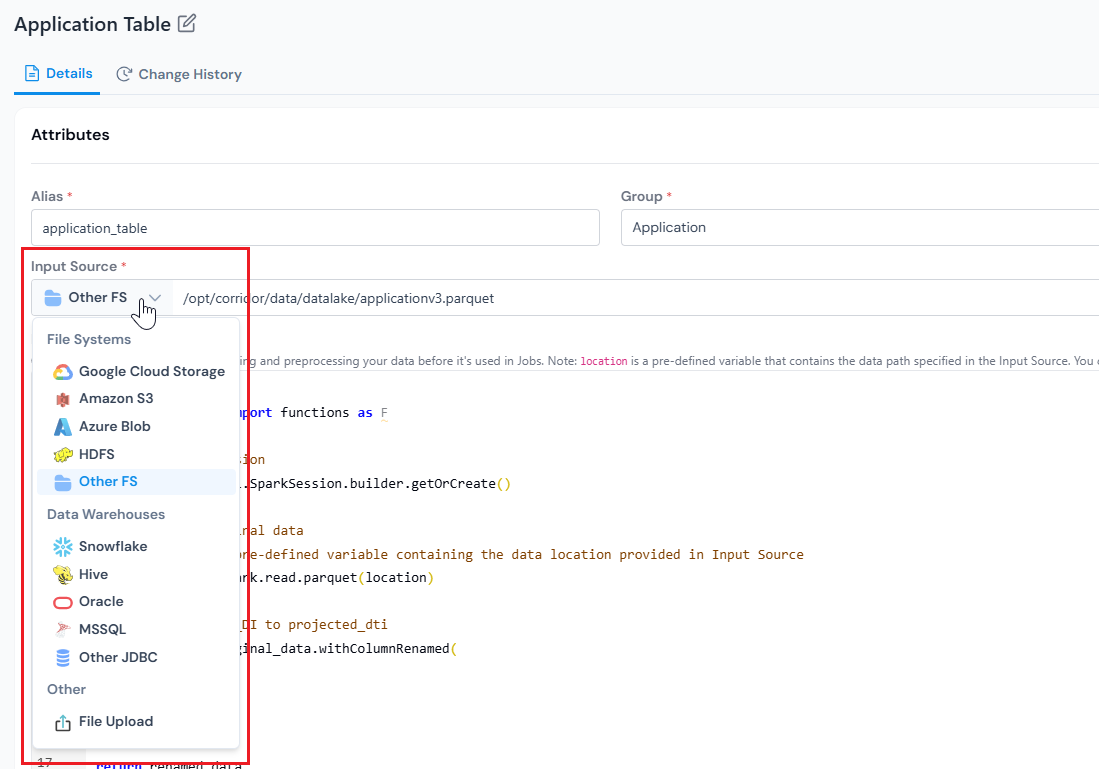
To optionally preprocess the data on top of the read, click Add Logic on the right of the Input Source row. See Add Read Logic.
(Optional) Add Read Logic
Section titled “(Optional) Add Read Logic”
(Optional) Add Read Logic
Section titled “(Optional) Add Read Logic”Read Logic lets you define custom Python or PySpark logic to read and preprocess data before it is used in any job.
Common use cases:
- Type casting specific columns (for example,
IDfromstringtobigint). - Transforming column values (string cleanup, normalising case, replacing nulls with defaults).
- Merging multiple data sources into a unified table (joining application data with bureau pulls).
- Subsetting to a relevant slice (for example, the last 10 years of data, or a specific product segment).
Inside the editor, location is a pre-defined variable that contains the path you entered in Input Source. Use it directly to read the data. Whatever object you return is the data the platform uses when running any job against this Data Table.
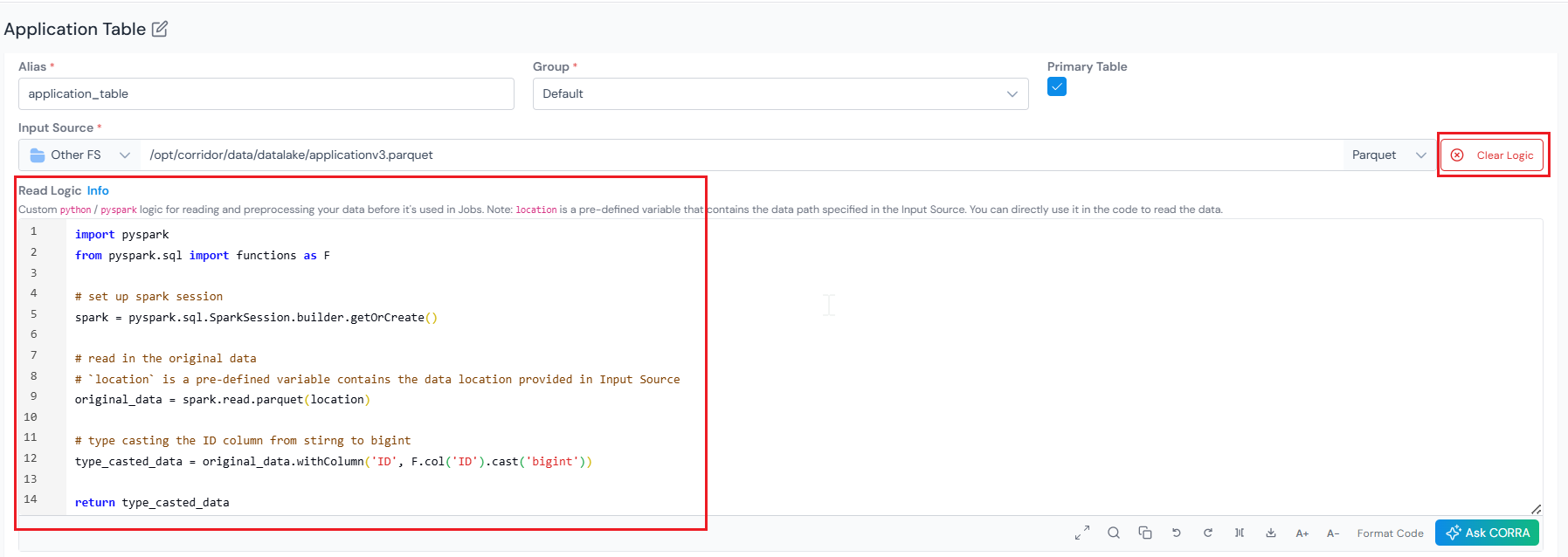
Example 1: Typecast the ID column to bigint
import pysparkfrom pyspark.sql import functions as F
# set up spark sessionspark = pyspark.sql.SparkSession.builder.getOrCreate()
# read in the original data# `location` is a pre-defined variable that contains the data location provided in Input Sourceoriginal_data = spark.read.parquet(location)
# type cast the ID column from string to biginttype_casted_data = original_data.withColumn('ID', F.col('ID').cast('bigint'))
return type_casted_data
Example 2: Merge an applications file with a bureau pull and keep only the last 10 years
import pysparkfrom pyspark.sql import functions as F
spark = pyspark.sql.SparkSession.builder.getOrCreate()
# `location` points to the applications dataset configured in Input Sourceapplications = spark.read.parquet(location)
# read the bureau pull from its own absolute pathbureau = spark.read.parquet('s3://risk-data-prod/bureau/bureau_summary/')
# join on application_id, then keep only the last 10 years of applicationsmerged = applications.join(bureau, on='application_id', how='left')recent = merged.where(F.col('application_date') >= F.add_months(F.current_date(), -120))
return recent
If you leave Read Logic empty, the platform reads the source directly using the format you selected.
Create the Table
Section titled “Create the Table”
Create the Table
Section titled “Create the Table”Click Create at the bottom right. The Data Table is saved and you land on its details page, which has Details and Change History tabs.
Fetch Columns
Section titled “Fetch Columns”
Fetch Columns
Section titled “Fetch Columns”The table needs a little editing before it can be populated, so click Edit. Then fetch the table’s columns from the source. They appear in the Columns section at the bottom of the Details tab.
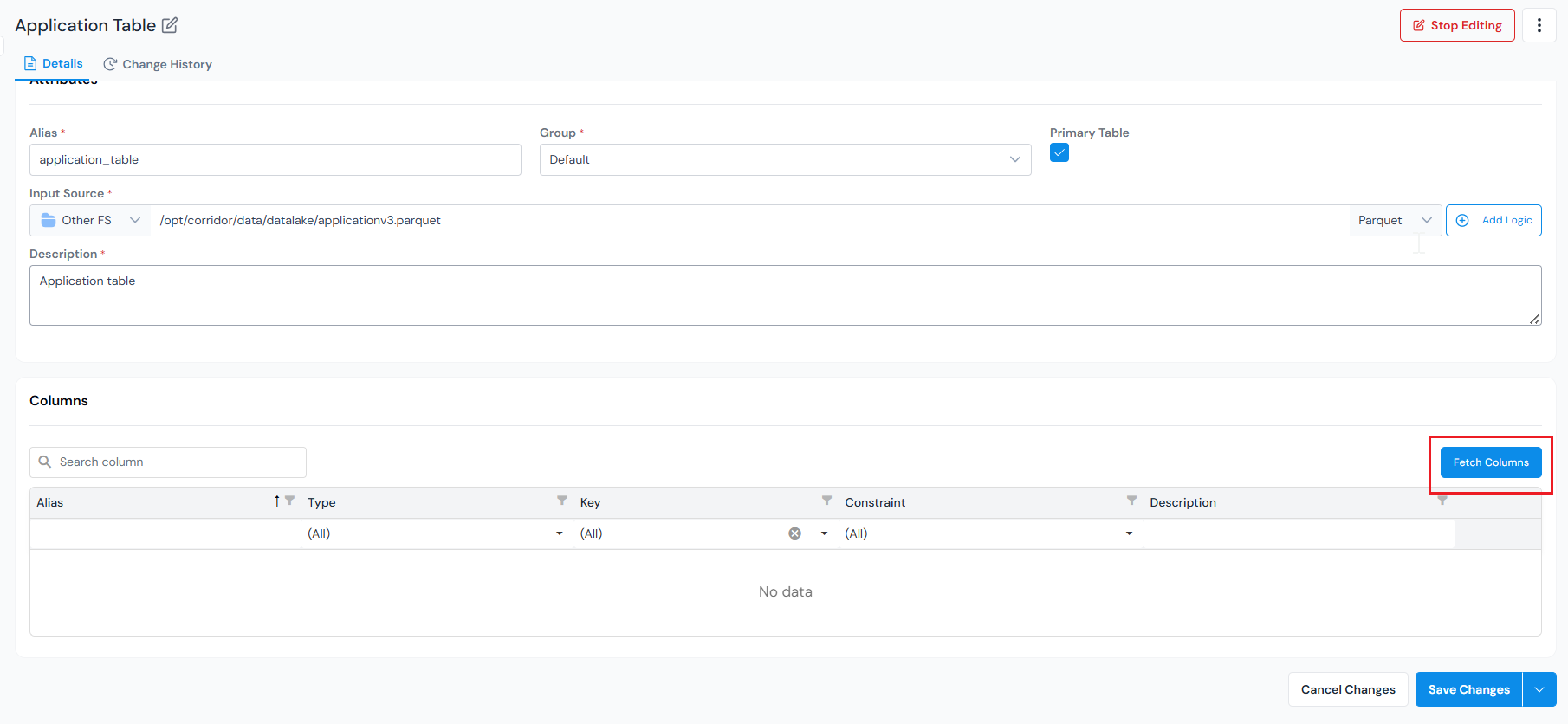
Each column’s Alias and Type are auto-populated from the source, so most need no action. Only the columns you want to use as keys need attention. For those, you set two separate dropdowns, Key and Constraint:
- Key - the dropdown lists the keys already configured under Settings, so if a key was set up for another table you simply select it here. If the key you need does not exist yet, configure a table key in Settings first, then choose it. Creating a table key may require admin access, so you might need to ask an admin. Leave this blank for ordinary data columns.
- Constraint - an independent property on that key. Choose Primary to mark the entity’s main identifier (available only on primary tables), Unique if the column’s values never repeat, or leave it as None.
It is also worth adding a short Description to each column, since it makes the table much easier to use later.
On the Account primary table, give the ID column the account_id Key with the Primary Constraint. On the application_id column, set the application_id Key with the None Constraint to link each account back to its application.
On the Payment History secondary/detailed table, the account_id Key already exists in Settings (created for the Account table), so you just select it for the matching column to link each payment record to its account. Its Constraint stays None because account_id is not unique here, many payment records share one account, so it is a link, not an identifier. If a per-row identifier is needed, configure a payment_id Key in Settings, select it here, and set its Constraint to Unique.
Once you have reviewed the columns and saved your changes, each column is available in the registry and the Data Table appears in Data Table, ready to use downstream.
What’s Next
Section titled “What’s Next”Once registered, the table is available in Data Vault → Data Table as part of the data catalog, ready to use in any downstream job.
- Register a DataElement to expose columns from this table for use across the platform.
- Open Data Vault → Quality Profile to run summary statistics (min, max, missing %) on any column from this table.
- See where tables fit in the broader flow in Start with a Model.
Was this page helpful?
Thanks for the feedback.